# Order Status
Below is a diagram explanting the workflow from which status an order can move to the next.
# Needs Approval Needs Approval
The status is applied when the Purchasing Limit is crossed. The supplier to whom the order is made won't see the order until resolved.
For the order to be seen by the supplier it needs to be Approved.
# Actions
# Pending Pending
The status is applied when a new order is created. The supplier to whom the order is made will see a notification for a pending order.
# Actions
# (Partially) Accepted Accepted Partially Accepted
The status is applied when a Pending order is accepted. This status can be partial, Partially Accepted. Only a Supplier can accept an order.
# Actions
# Options
| Option | Required | Description |
|---|---|---|
| Note | ✕ | Leave a note. Shown under the Note tab. |
| Partial | ✕ | Can be partially accepted. |
# Scheduled For Delivery Scheduled For Delivery
This status is applied when an Accepted order is scheduled. It can only be applied from the Supplier side.
# Scheduling an order
To schedule an order you must select a Accepted order and select when to schedule the order. The following modal will be offered.
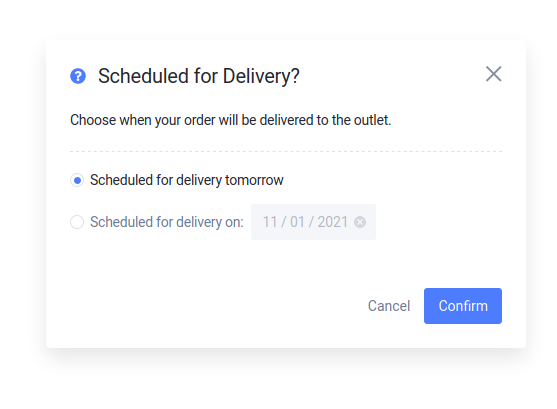
There are two options offered:
- Schedule for tomorrow.
- Schedule for a custom date - The date can be today or in the future.
# Actions
# Completed Completed Completed
This status is applied when Complete the order action is applied, in other words you confirm a delivery. If an other was previously in dispute and then completed (Resolved) it will have a special status called Completed after dispute. The label for this status will have a red circle.
# Actions
* A new order with the same items will be created.
# Options
| Option | Required | Description |
|---|---|---|
| Images | ✕ | Upload up to 3 images. Shown under the Note tab. |
| Invoice | ✕ | Upload an invoice (limited to 1 image). Shown under the Invoice tab. |
| Note | ✕ | Leave a note. Shown under the Note tab. |
# In Dispute In Dispute
This status can only be applied to Completed orders from the Outlet side. Order's Supplier will receive an email of the dispute.
# Actions
# Options
| Option | Required | Description |
|---|---|---|
| Note | ✓ | Leave a note. Shown under the Note tab. |
| Images | ✕ | Upload up to 3 images. Shown under the Note tab. |
# Abandoned Abandoned
When an order is abandoned order's Supplier will receive an email notification.
# Actions
No actions
# Declined Declined
Order can only be declined from the Supplier side and if the order is Pending.
# Options
| Option | Required | Description |
|---|---|---|
| Note | ✕ | Leave a note. Shown under the Note tab. |